
AI-powered customer experience marketing (CXM) platform that helps local businesses win.


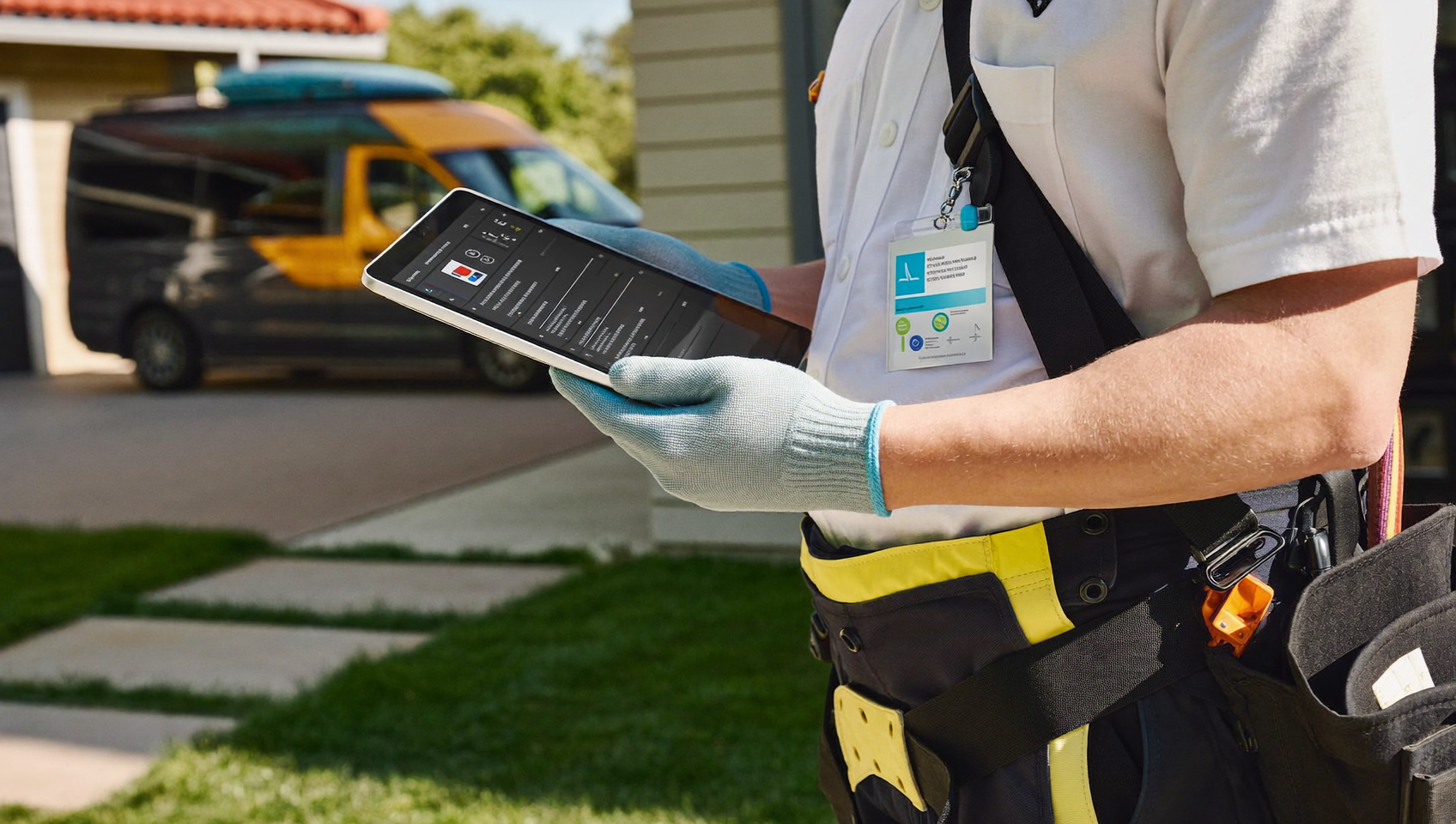
You’re running a home service business on Jobber. Your team’s juggling phone calls, texts, and customer messages across three or four different apps. Every time a lead calls after hours, nobody picks up. Every time a tech finishes a job, the follow-up text gets forgotten. If you’re wondering how to integrate SalesCaptain with Jobber, you’re already on the right track to solving the communication mess that’s quietly costing you revenue.
Integrating SalesCaptain with Jobber connects your customer communications platform to your job management system, centralizing calls, texts, and messages in one inbox. This eliminates missed leads, automates follow-ups, and syncs customer data between platforms without manual data entry.
Free weekly newsletter
Growth tips for service businesses
Every Tuesday — actionable ideas to get more leads, reviews, and repeat customers. No fluff.
Quick Answer
Service businesses can integrate their job management platform with AI-powered phone systems by connecting API credentials through the platform’s integration settings, enabling automatic call logging, appointment scheduling, and customer data synchronization. This eliminates manual data entry between systems and ensures no customer calls or follow-ups fall through the cracks, streamlining your entire workflow.
What Is a SalesCaptain and Jobber Integration?
Jobber is the operational backbone for thousands of home service businesses. It handles scheduling, quoting, invoicing, and client management. But here’s the thing—Jobber wasn’t built to be a full communication platform. It doesn’t answer your phone at 2 AM, send instant text-backs when you miss a call, or route incoming messages from Instagram and your website into one inbox.
That’s where SalesCaptain fills the gap. Integrating SalesCaptain with Jobber connects your customer communication layer directly to your job management system. When a new lead calls and your AI Phone Agent books an appointment, that information flows into Jobber. When a customer texts to confirm a visit, your team sees it alongside the job details. Nothing falls through the cracks anymore. The integration bridges the space between “how customers reach you” and “how you manage the work.”
Why Home Service Businesses Can’t Afford Disconnected Communication
Before walking through the setup process, it’s worth understanding what’s actually at stake. Disconnected tools aren’t just inconvenient. They’re expensive. Really expensive.
The Revenue Impact of Missed Calls
According to RingReady’s 2026 data on the cost of missed calls, service businesses lose significant revenue every month from unanswered calls alone. That doesn’t even account for the leads who call a competitor instead of leaving a voicemail. Research from Zadarma’s missed call cost analysis confirms that most callers won’t try again if their first call goes unanswered.
For a roofing company or plumbing business running on Jobber, each missed call could represent a $500 to $5,000 job. Multiply that across a month, and you’re looking at five figures in lost opportunity. And yet the fix isn’t hiring more office staff. It’s making sure your communication tools and your job management system actually talk to each other.
The Chaos of Managing Multiple Channels Separately
Most Jobber users also manage a Google Business Profile, a website with a contact form, maybe a Facebook page, and certainly a phone line. Without integration, your team checks Jobber for schedules, their phone for texts, email for inquiries, and social media for DMs. That fragmentation creates delays. And delayed responses are nearly as damaging as missed calls entirely. Customers expect fast replies. The businesses that deliver them win the job.
Step-by-Step Process for Connecting SalesCaptain with Jobber
The integration doesn’t require a developer or any coding experience. Here’s how to set it up from start to finish.
Map Your Communication Workflow First
Before touching any settings, sketch out how calls and messages should flow through your business. Ask yourself these questions:
- When a new lead calls, should the AI Phone Agent book directly into Jobber’s calendar?
- After a job is completed, should an automated text go out requesting a review?
- Do you want missed-call text-backs to trigger a new contact in Jobber?
- Should your team see all customer conversations in one inbox, or only certain channels?
Getting clear on these answers makes the configuration process much faster. You’re essentially deciding which events in SalesCaptain should create or update records in Jobber, and vice versa.
Connect the Two Platforms
SalesCaptain supports 50+ native integrations. Jobber connects through both direct integration and via Zapier for custom workflows. The connection process is straightforward:
- Log into your SalesCaptain dashboard and navigate to the Integrations section.
- Select Jobber from the available integrations list (or set up through Zapier if you need custom triggers).
- Authenticate your Jobber account by entering your credentials when prompted.
- Choose which data should sync: contacts, appointments, job notes, or all of the above.
- Map your SalesCaptain fields to the corresponding Jobber fields so information lands in the right place.
The entire process takes under 15 minutes. Once connected, data flows automatically based on the triggers you’ve configured.
Set Up Your AI Phone Agent
With the integration active, configure your AI Phone Agent to handle the calls your team can’t. SalesCaptain’s voice agent sounds natural. It answers 24/7. And it can book appointments directly into your Jobber schedule. You’ll want to customize a few things:
- Greeting and business details: Tell the AI your company name, services offered, and service area.
- FAQ responses: Add answers for common questions like pricing ranges, hours, and emergency availability.
- Booking rules: Set which appointment slots are available and how far out customers can book.
- Lead qualification: Define the questions the AI should ask to determine if a caller is a good fit before booking.
- Spam blocking: Enable call filtering so robocalls and solicitors don’t clog your system.
Once this is configured, every call your AI agent handles gets logged, transcribed, and summarized. Those records sync to Jobber so your field team has full context before they arrive at a job site.
Automate the Repetitive Communication Steps
The real power shows up in automation. SalesCaptain’s drag-and-drop Workflow Automation builder lets you create triggers that eliminate manual follow-up entirely. What does that look like in practice? Here are the workflows that deliver the most value for Jobber users:
- Missed-call text-back: When a call goes unanswered, automatically send an SMS saying “Sorry we missed you, how can we help?” This alone recovers a significant percentage of leads who would’ve called a competitor.
- Appointment reminders: Send automated text reminders 24 hours and 1 hour before a scheduled job, reducing no-shows.
- Post-job follow-up: After a job is marked complete in Jobber, trigger a review request via text.
- Lead nurture sequences: For quotes that haven’t converted, send a series of follow-up texts over the next week.
Each of these workflows runs without anyone on your team lifting a finger. And because everything lives in SalesCaptain’s Unified Inbox, your office staff can see every automated message alongside manual conversations in one place.
Best Practices for Getting the Most Out of Your Integration
Setting up the technical connection is only half the battle. How you use it day-to-day determines whether it actually saves you time and money.
Train Your Team on the Unified Inbox
Your dispatchers and office managers need to understand that SalesCaptain’s Unified Inbox replaces the need to check multiple apps. Calls, texts, webchat messages, Facebook DMs, and Instagram messages all appear in one feed per customer. According to the SBA’s small business data resources, businesses that reduce operational complexity see measurable improvements in employee productivity and customer satisfaction.
Spend 30 minutes walking your team through the inbox. Show them how to see a customer’s full conversation history, including AI-generated call summaries and transcriptions. Once they realize they don’t have to search through voicemails or scroll back through text threads, adoption happens fast.
Use Call Flows for Consistent Handling
SalesCaptain’s Call Flow builder lets you design exactly what happens when a call comes in. For a Jobber-based business, a solid call flow might look like this: greet the caller, route emergency calls to an on-call tech, send non-urgent callers to the AI Phone Agent for booking, and capture voicemails with automatic transcription for everything else. You can build this visually. No technical skills required.
Review AI Summaries Weekly
SalesCaptain’s AI Summaries and Transcriptions feature turns every call into searchable, reviewable text. Make it a weekly habit to scan summaries for patterns. Are customers asking about a service you don’t currently offer? Are callers mentioning a competitor’s pricing? These insights help you refine your marketing and pricing strategy. They’re sitting right there in your dashboard.
How SalesCaptain Helps
SalesCaptain is the only platform that combines an AI Phone Agent, AI Chat Agents, and a Unified Inbox in a single tool built specifically for service businesses. While other communication tools like Birdeye lack call routing, IVR, and AI for calls, and platforms like Podium don’t offer outbound workflow automation, SalesCaptain delivers all of these in one place. Transparent, per-location pricing too.
For Jobber users specifically, the integration means your job management system finally has a communication layer that matches its capability. Your AI Phone Agent answers calls around the clock and books jobs. Your AI Chat Agents handle texts and social messages instantly. Workflow Automation takes care of reminders, follow-ups, and review requests. And your Unified Inbox gives every team member full visibility into every customer interaction, synced with their Jobber records.
The Business plan starts at $159 per month per location. There’s also a free Startup plan if you want to test the waters with a single location first. AI call minutes run $0.12 per minute, which is a fraction of what traditional answering services charge. According to ToolChase’s 2026 comparison of AI receptionists, AI-powered phone agents consistently outperform human answering services in both cost efficiency and response speed.
Key Takeaways
- Integrating SalesCaptain with Jobber connects your customer communication directly to your job management system, eliminating the need to manage multiple disconnected tools.
- The setup takes under 15 minutes and requires zero technical expertise.
- An AI Phone Agent that syncs with Jobber means you’ll never lose a lead to a missed after-hours call again.
- Automated workflows handle missed-call text-backs, appointment reminders, post-job follow-ups, and lead nurture without any manual effort.
- Your team works from one Unified Inbox instead of bouncing between apps, which reduces errors and speeds up response times.
For any home service business running Jobber, this integration isn’t a nice-to-have. It’s the difference between capturing every lead and watching them call someone else.
Frequently Asked Questions
Can I connect SalesCaptain to Jobber without any technical expertise?
Yes, absolutely. The integration uses a guided authentication flow that walks you through each step. You’ll log into both accounts, choose your sync settings, and map your fields. No coding needed. No API keys to manage manually. No developer required. Most users complete it in under 15 minutes.
What happens to calls that come in after business hours?
SalesCaptain’s AI Phone Agent answers calls 24/7. After hours, it can greet the caller, answer common questions, qualify the lead, and book an appointment directly into your Jobber calendar. Every call is transcribed and summarized so your team has full context the next morning. According to ABS Call Center’s research on missed calls, capturing after-hours calls can meaningfully increase monthly revenue for service businesses.
Does connecting SalesCaptain replace my existing phone number?
No, it doesn’t. You can port your existing business number to SalesCaptain or use a new number alongside your current one. Either way, your customers won’t notice any change in how they reach you. The phone system runs on 99.99% uptime with crystal-clear audio quality.
How much does the integration cost?
The integration itself is included with your SalesCaptain plan. SalesCaptain’s free Startup plan covers one location, the Business plan is $159 per month per location, and AI call minutes are $0.12 per minute. There aren’t hidden fees for the Jobber connection or for using Zapier-based workflows.
Will my team need to learn a completely new system?
Your team keeps using Jobber for scheduling and job management. SalesCaptain adds a Unified Inbox where all communication lives. It’s designed for non-technical users. Most teams are comfortable with it within a day. Because AI handles the bulk of repetitive calls and texts, your staff actually has less to manage, not more.
Ready to see it in action?
See how service businesses use SalesCaptain with Jobber to never lose a lead again.
See How SalesCaptain Connects Your Communication to Jobber
Stop losing leads to missed calls and slow follow-ups. SalesCaptain gives your Jobber-powered business an AI Phone Agent, automated workflows, and a Unified Inbox that keeps every customer conversation in one place.
Start your free account at SalesCaptain.com and connect it to Jobber today.