
AI-powered customer experience marketing (CXM) platform that helps local businesses win.


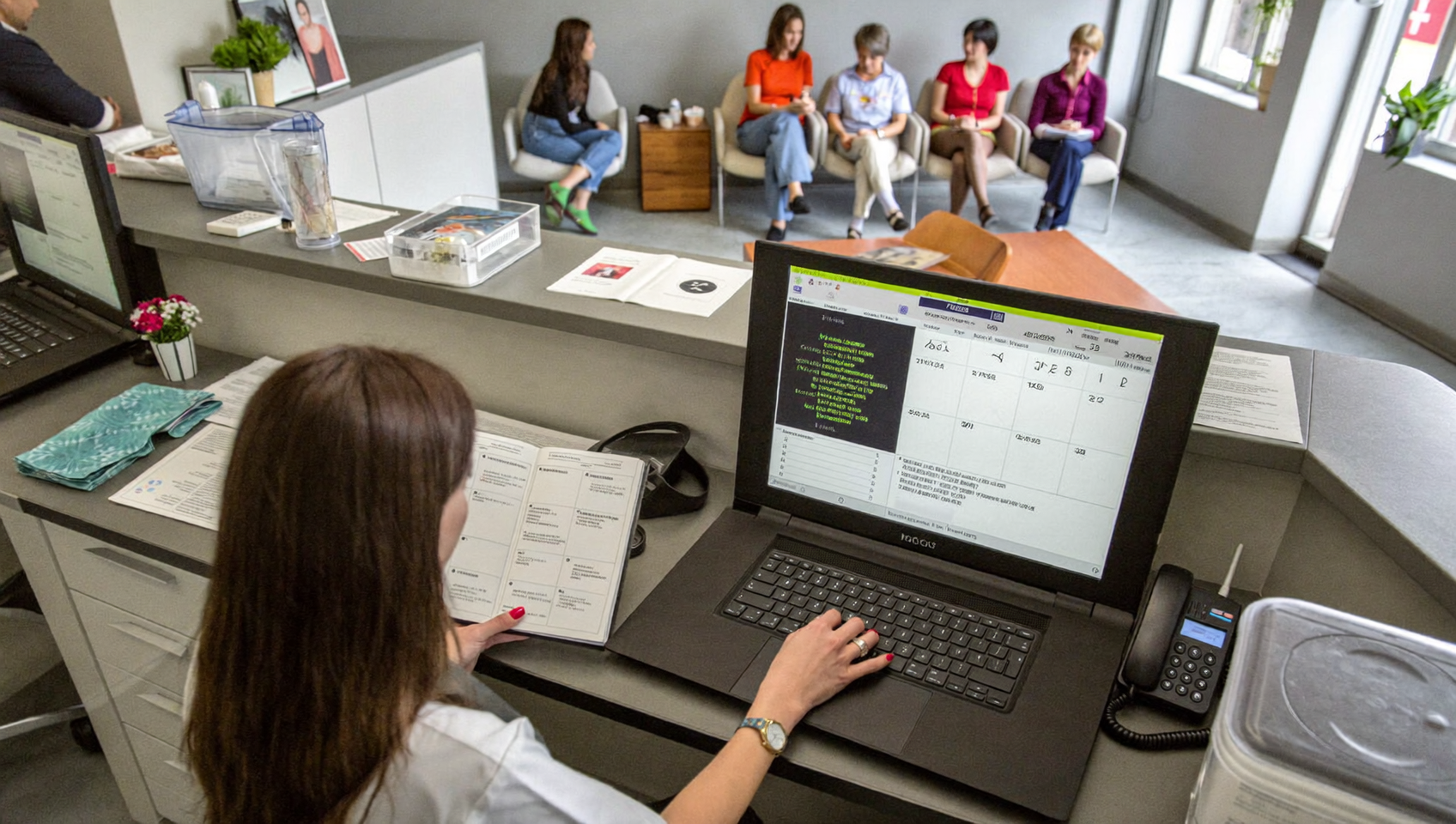
A customer books an appointment with your business, then forgets about it two days later. Your team scrambles to fill the empty slot, but it’s too late. Revenue lost, time wasted. Sound familiar? This scenario plays out constantly for service businesses, and it’s almost entirely preventable. Learning how to set up automated appointment reminders is one of the simplest, highest-ROI moves you can make for your business.
Automated appointment reminders are pre-scheduled messages sent to customers via text, email, or phone before their appointments. Once configured, the system handles timing and delivery automatically, eliminating no-shows and freeing your team from manual reminder calls. Most businesses see 20-40% reductions in missed appointments.
Free weekly newsletter
Growth tips for service businesses
Every Tuesday — actionable ideas to get more leads, reviews, and repeat customers. No fluff.
Quick Answer
Automated appointment reminders send customers notifications via email, text, or phone calls before their scheduled appointments. Set them up by connecting your scheduling system to a reminder service, configuring timing (typically 24 hours before), personalizing the message, and enabling two-way confirmations so clients can reschedule or cancel directly from the notification.
What Are Automated Appointment Reminders?
Automated appointment reminders are pre-scheduled messages sent to customers before their upcoming appointments. They’re delivered via text, email, phone call, or a combination of all three, without anyone on your team lifting a finger. Once configured, the system handles timing, delivery, and even follow-up if the customer doesn’t respond.
Think of them as a safety net for your calendar. Instead of relying on customers to remember (or your front desk to call every person manually), the reminder fires automatically based on rules you set. Most businesses send reminders 24 to 48 hours before the appointment, though the best setups include a confirmation request so customers can reschedule instead of simply not showing up. According to the SBA’s small business data, the majority of U.S. businesses have fewer than 20 employees. That means there’s rarely enough staff to handle manual reminder calls alongside everything else.
Why Automated Reminders Matter More Than You Think
The Real Cost of No-Shows
Every missed appointment costs your business twice. You lose the revenue from that time slot, and you lose the opportunity cost of what could’ve been booked there. For a plumber charging $150 per service call or a dental office billing $300 per cleaning, even a few no-shows per week add up fast. Research on missed call costs shows that failing to connect with customers at the right time directly impacts a business’s bottom line. The same logic applies to missed appointments.
Beyond direct revenue, there’s the staff time spent rescheduling, the frustration of idle technicians or practitioners, and the ripple effect on your schedule for the rest of the day. Automated reminders don’t eliminate no-shows entirely. But they dramatically reduce them by giving customers a nudge and an easy way to confirm or reschedule.
Why Text Reminders Outperform Email and Phone
Email reminders sit unread. Phone calls go to voicemail. But text messages? Most people read them within minutes. That’s why SMS has become the default channel for appointment reminders across industries. A well-timed text with a confirmation link gets responses fast. An email buried under 47 other messages doesn’t.
However, the ideal approach isn’t single-channel. Combining a text reminder 24 hours before with an email reminder 48 hours before covers more bases. Some customers prefer one channel over another, and using both increases the likelihood that your reminder actually gets seen. The key is automation. You set it once, and every future appointment gets the same treatment.
📺 Watch: How to Set Up Appointment Reminders with Automation
How to Set Up Automated Appointment Reminders Step by Step
Step 1: Choose Your Channels
Before you touch any software, decide which channels make sense for your customers. For most small businesses doing their market research, the answer is SMS first, email second, and voice calls third. Your customer base might lean differently. A MedSpa clientele might respond well to text. An older demographic at a dental practice might still prefer phone calls. Know your audience.
Step 2: Set Your Timing Rules
Timing is everything. Send a reminder too early and it gets forgotten again. Send it too late and the customer can’t reschedule even if they need to. Here’s what actually works:
- First reminder: 48 hours before the appointment via email, covering details like date, time, location, and any prep instructions
- Second reminder: 24 hours before via SMS with a confirm/reschedule link
- Final reminder: 2 hours before via text, particularly useful for same-day appointments or high-value services
Adjust these intervals based on your industry. A roofing company scheduling jobs a week out might add a reminder 5 days before. A salon with frequent last-minute bookings might tighten the window to same-day only.
Step 3: Write Your Reminder Messages
Keep messages short, clear, and actionable. Every reminder should include the customer’s name, appointment date and time, your business name, and a way to confirm or reschedule. Here’s a template that works well:
“Hi [First Name], this is a reminder of your appointment with [Business Name] on [Date] at [Time]. Reply C to confirm or R to reschedule.”
Avoid walls of text. Don’t cram your full address, parking instructions, and cancellation policy into an SMS. Save those details for email. Personalization matters. But it should feel natural rather than forced.
Step 4: Build the Automation Workflow
This is where most businesses get stuck. You need a system that triggers reminders based on your appointment calendar and sends them without manual intervention. What does that workflow look like in practice?
- Trigger: New appointment is created (or updated)
- Condition: Appointment is at least 24 hours away
- Action 1: Send email reminder 48 hours before
- Action 2: Send SMS reminder 24 hours before
- Action 3: If no confirmation received, send a follow-up text 2 hours before
- Action 4: If customer requests reschedule, trigger rebooking flow
A drag-and-drop workflow builder makes this accessible even if you aren’t technical. You shouldn’t need a developer or agency to set up basic appointment reminders.
Step 5: Test Before You Go Live
Run the full workflow on yourself and a few team members first. Book a test appointment and verify that every message fires at the right time, on the right channel, with the correct details. Check for formatting issues on different phone models. Make sure the confirm/reschedule link works. Small glitches erode customer trust fast. Catch them before real customers see them.
Step 6: Monitor and Optimize
Once live, track your confirmation rates and no-show rates weekly. If you’re sending 100 reminders and only getting 30 confirmations, something needs adjusting. It might be the message copy, the timing, or the channel mix. Treat your reminder system as a living workflow that you refine over time. Not a set-and-forget checkbox.
Best Practices for Maximizing Reminder Effectiveness
Personalization Beyond the First Name
Including a customer’s name is table stakes. What separates great reminders from generic ones is context. Mention the specific service they booked (“your HVAC maintenance appointment” vs. “your appointment”). If you’re a multi-location business, include the correct address. Small details like these reduce confusion and boost confirmation rates.
Offer Easy Rescheduling, Not Just Confirmation
Many businesses ask customers to confirm but don’t give them an easy path to reschedule. That’s a mistake. A customer who can’t make it but has no easy way to change the time will simply ghost you. Give them a link or reply option that lets them pick a new slot. You’ll save the appointment instead of losing it entirely. Your schedule stays filled. Data on missed call costs for SMBs reinforces how expensive it’s every time a customer interaction falls through the cracks.
Respect Opt-Out Preferences
Every automated message you send should include an opt-out option. It’s both a legal requirement under FCC rules for automated texting and a trust signal. Customers who feel they can’t unsubscribe will report your messages as spam. That hurts your sender reputation and deliverability for everyone else on your list.
Integrate with Your Existing Tools
Your reminder system shouldn’t live in isolation. It needs to connect with your scheduling tool, CRM, and communication platform so that appointment changes sync in real time. If a customer reschedules through your booking page, the old reminder should cancel automatically. A new one should trigger for the updated time. Without this integration, you’ll end up sending reminders for appointments that no longer exist.
How SalesCaptain Helps
SalesCaptain’s Workflow Automation builder lets you create the entire reminder sequence described above using a visual drag-and-drop interface. You set the triggers, timing, and channels. Then the system handles execution across SMS, email, and even AI-powered phone calls. Because SalesCaptain’s AI Chat Agents handle responses on autopilot, customers can confirm or reschedule via text and get an instant reply without your team being involved.
What makes this particularly powerful for service businesses is how it connects with the tools you already use. SalesCaptain offers native two-way integrations with platforms like Housecall Pro, ServiceTitan, Acuity Scheduling, and DrChrono. Appointment data flows both directions. When a job gets booked in ServiceTitan, SalesCaptain can automatically trigger the reminder workflow. When a customer confirms via text, it updates the record. For tools like Jobber, HubSpot, or Mindbody, connecting through Zapier extends the same automation to virtually any scheduling platform.
Everything lives inside a Unified Inbox, so your team sees all confirmations, reschedule requests, and customer replies in one place alongside calls, webchat, and social messages. There’s no switching between tabs or losing track of who confirmed. And if a customer calls back instead of texting, SalesCaptain’s AI Phone Agent can answer, verify the appointment, and handle rescheduling without a human picking up the phone. Plans start free for a single location. The Business tier is $159/month per location for full automation capabilities.
Key Takeaways
Setting up automated appointment reminders isn’t complicated. But doing it well requires thoughtful planning around channels, timing, message copy, and integration with your existing tools. Here’s what matters most:
- SMS is your highest-impact channel, but combining it with email and voice covers all customer preferences
- Send reminders at 48 hours, 24 hours, and 2 hours before for optimal confirmation rates
- Always offer an easy reschedule path, not just a confirm button
- Use a drag-and-drop workflow builder so you don’t need technical help
- Integrate reminders with your scheduling and CRM tools for real-time accuracy
- Monitor confirmation and no-show rates weekly to continuously improve
Automated reminders protect your revenue and free your staff from repetitive phone calls. They also give customers the professional experience they expect. The businesses that set this up properly don’t just reduce no-shows. They build a reputation for reliability that keeps customers coming back.
Frequently Asked Questions
How far in advance should I send automated appointment reminders?
The sweet spot for most service businesses is a two-touch approach: one reminder 48 hours before (usually via email) and another 24 hours before (via SMS). High-value appointments benefit from a third reminder 2 hours before. Experiment with timing based on your industry and customer behavior. Then adjust based on your confirmation rates.
Can I send automated reminders through text and email at the same time?
Yes, and you should. Multi-channel reminders increase the odds that your customer actually sees the message. Use email for detailed information (address, prep instructions, cancellation policy) and SMS for the quick, actionable nudge. Most workflow automation tools let you configure both channels within a single automation sequence.
Do automated appointment reminders actually reduce no-shows?
They’re one of the most effective tools for reducing no-shows across every service industry. The exact impact depends on your current no-show rate, the channels you use, and whether you include an easy reschedule option. Businesses that add a confirm-or-reschedule link in their text reminders consistently see better results. One-way notifications don’t perform as well.
What should I include in an appointment reminder message?
Keep it simple: customer’s first name, your business name, the date and time of the appointment, and a clear call to action (confirm, reschedule, or call back). For SMS, stay under 160 characters if possible. For email, you can add location details, prep instructions, and your cancellation policy.
Do I need a developer to set up automated reminders?
Not if you choose the right platform. Drag-and-drop workflow builders let you create trigger-based reminder sequences without writing code. Look for a tool that integrates natively with your scheduling software. That way appointment data syncs automatically. Platforms like SalesCaptain are designed specifically for non-technical business owners to build these workflows in minutes.
Ready to see it in action?
See how service businesses use SalesCaptain to automate appointment reminders and reduce no-shows.
Book a Free Demo →See How SalesCaptain Can Help
SalesCaptain gives you automated appointment reminders, AI-powered customer responses, and a unified inbox for every channel, all in one platform built for service businesses. Start with the free plan and see the difference automated reminders make for your no-show rate.